You get in the Sierra, the 8-inch MyLink or IntelliLink screen powers on, and everything looks normal. Then you tap it and nothing happens. The screen is on. The radio works. But touch input is completely dead. Before you drive to the dealer and absorb a four-figure quote for a full radio replacement, read this. In most cases, a GMC Sierra screen that displays an image but does not respond to touch is a fixable hardware problem, not a dead head unit.
Note: This guide covers the earlier-generation GMC Sierra 8-inch MyLink/IntelliLink system (display platform DJ080PA-01A), used before GM's redesign of the truck. GM introduced a different infotainment display on the redesigned Sierra. If your truck is a newer model year, confirm your screen's part number before assuming this guide or the linked replacement part applies to your vehicle — see the Compatible Vehicles section below.
In This Article
- Start Here: What Is the Screen Actually Doing?
- The Three Causes of an Unresponsive GMC Sierra Screen
- Step 1: Soft Reset
- Step 2: Hard Reset
- Step 3: Diagnose the Touch Layer
- What About Ghost Touch and Erratic Inputs?
- When the Screen Is Completely Black
- The Fix: Complete Screen Replacement
- Cost Comparison: Dealer vs. Cuescreens
- Compatible Vehicles
- Frequently Asked Questions
Start Here: What Is the Screen Actually Doing?
The single most important diagnostic step costs nothing and takes about five seconds. Look at the screen and answer this question: is there an image on it?
If the screen shows a clear, normal image — the infotainment home screen, audio controls, a map — the display hardware is working. The LCD is fine. The backlight is fine. What is not working is the touch input layer. This is a digitizer or display assembly problem, not a head unit problem.
If the screen is completely black with no image and no backlight, that is a different situation with different causes. Jump to the black screen section.
This distinction matters enormously because dealers frequently quote full head unit replacements for both scenarios. In the vast majority of cases where the screen image is visible, that repair is not what the truck needs.
The Three Causes of an Unresponsive GMC Sierra Screen
1. Software Crash or Freeze
The GMC Sierra's MyLink/IntelliLink infotainment software manages everything from audio and navigation to Bluetooth and backup camera input. Like any operating system, it can crash, freeze, or enter a state where touch input stops registering while the display continues to show a normal image.
Signs this is your issue:
- The problem appeared suddenly after a period of normal operation
- The system has frozen or spontaneously rebooted before
- The issue started after a software update or a battery disconnect
- A restart temporarily restores touch before the problem comes back
2. Touchscreen Display Assembly Failure
The 8-inch MyLink/IntelliLink screen uses a pre-bonded LCD and capacitive digitizer assembly. The digitizer is the touch-sensitive layer that sits on top of the LCD. When the digitizer fails — from heat damage, delamination, physical wear, or age — the system receives no touch input at all. The screen looks completely normal. It just does not respond.
This is the most common hardware cause of an unresponsive Sierra screen, and it is the failure mode that dealers most frequently misdiagnose as a full head unit failure.
Signs this is your issue:
- The screen image is sharp and normal but tapping anywhere does nothing
- Certain zones stopped responding before others, then touch failed entirely
- Ghost touches or phantom inputs preceded the complete loss of response
- The screen has visible cracking, bubbling, or delamination
- Resets restore touch briefly but the failure returns within hours
3. Fuse, Wiring, or Power Issue
A blown fuse protecting the infotainment display, a loose ribbon cable behind the dash, or a wiring connection that has come unseated can all produce touch failures. These are less common than software and hardware causes but are worth ruling out, particularly if the problem started immediately after any electrical work, battery replacement, or dash removal.
Signs this is your issue:
- The problem appeared immediately after battery work or dash service
- The screen is completely dark rather than displaying an image
- Other electrical systems behaved oddly at the same time the screen failed
Step 1: Soft Reset
A soft reset reboots the infotainment system without affecting saved settings or vehicle data. Press and hold the Home button and the Fast Forward button simultaneously for at least 10 seconds until the screen goes dark and the system begins to reboot. Allow the system to complete its startup sequence before testing touch.
If touch is restored after the soft reset and the problem does not return, you had a one-time software crash. Monitor the system. If the unresponsiveness comes back within a few days, move to a hard reset.
Step 2: Hard Reset
A hard reset cuts all power to the system and forces a full cold boot. This clears volatile memory that a soft reset cannot reach and resolves most software-related freezes that persist through normal reboots.
- Turn the Sierra fully off and remove the key
- Open the hood and disconnect the negative battery terminal
- Wait at least 10 minutes to allow the system to fully discharge
- Reconnect the terminal and start the vehicle
- Allow the infotainment system to complete its startup before testing touch
If touch is restored and holds after the hard reset, the issue was software. If the screen returns to being unresponsive, or if touch never came back at all after the hard reset, the problem is hardware. Specifically, the screen assembly.
Step 3: Diagnose the Touch Layer
After both resets, test touch response methodically. Tap the four corners of the screen, the center, and along all four edges. If nothing registers anywhere, the digitizer has failed completely. If some zones respond and others do not, the assembly is partially failing and will degrade further.
Also try pressing more firmly than a normal tap. A capacitive digitizer that is failing due to a crack or delamination sometimes responds to firm, deliberate contact while ignoring light touches. If this is the case, the digitizer is degrading and a full failure is imminent.
If none of this produces consistent, reliable touch response, the screen assembly needs to be replaced. The radio, the navigation system, the Bluetooth processor, and all other head unit functions are almost certainly working correctly.
What About Ghost Touch and Erratic Inputs?
Some Sierra owners arrive at a completely unresponsive screen after a period of erratic behavior — the screen changing audio sources on its own, opening apps without input, or adjusting volume randomly. This progression is common and follows a predictable pattern.
Ghost touch on the 8-inch MyLink/IntelliLink system is caused by the same digitizer degradation that eventually produces a completely unresponsive screen. As the touch layer breaks down, it first begins sending incorrect signals — phantom inputs that the system interprets as real touches. Over time, as the digitizer continues to degrade, it stops sending reliable signals at all. The ghost touch stops. The screen goes quiet. And then touch stops working entirely.
If your Sierra went through a ghost touch phase before the screen stopped responding, that history confirms the diagnosis: the digitizer has failed. A reset will not fix it. The assembly needs to be replaced.
When the Screen Is Completely Black
A completely black screen with no image and no backlight is not a digitizer problem. The digitizer handles touch input only — it plays no role in whether the display produces an image. A black screen points to a different set of causes:
- Blown fuse: The infotainment display fuse is the first thing to check. Consult your owner's manual for the correct fuse location and inspect it before assuming component failure.
- Loose connector: A ribbon cable or power connector behind the dash that has come unseated can produce a black screen, particularly after recent electrical work or battery replacement.
- Hard reset: Some black screen conditions caused by software errors resolve with a full battery disconnect. Try the hard reset procedure above before concluding the hardware has failed.
- LCD or backlight failure: If none of the above applies, the LCD assembly itself may have failed. In this case the entire display assembly needs to be replaced.
One useful indicator: if the radio audio is still working while the screen is black, the head unit is alive. The display is the problem, not the infotainment processor.
The Fix: Complete Screen Replacement
For GMC Sierra owners with a confirmed screen assembly failure on the 8-inch MyLink/IntelliLink system, the correct repair is replacing the display, not the head unit.
The Cuescreens 8-inch MyLink/IntelliLink LCD and Touchscreen Replacement is a complete pre-bonded assembly built on the DJ080PA-01A platform with an upgraded QuantumCore chip. It replaces both the LCD and the digitizer in a single unit — no scraping old adhesive, no separating layers, no programming required. Remove the old screen, install the new assembly, reconnect the cables, and the system recognizes it automatically.
Key features of the Cuescreens replacement:
- QuantumCore upgraded chip for faster, more accurate touch response than the original
- Complete pre-bonded LCD and digitizer — true plug and play installation
- Gel-free construction that eliminates the adhesive failure behind ghost touch and delamination
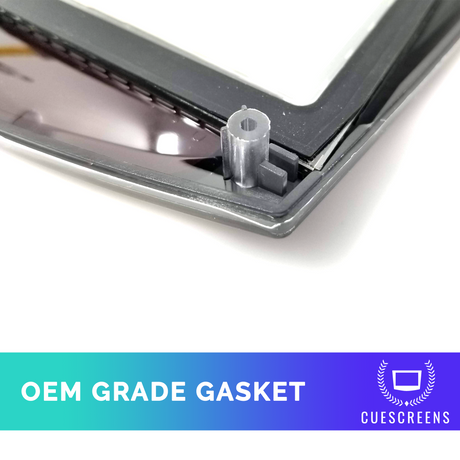
- OEM-grade fit for 8-inch MyLink and IntelliLink systems
- Resolves ghost touch, unresponsive touch, cracked glass, lines, dark spots, flickering, and delamination
- 2-year warranty standard, with a Lifetime warranty upgrade available
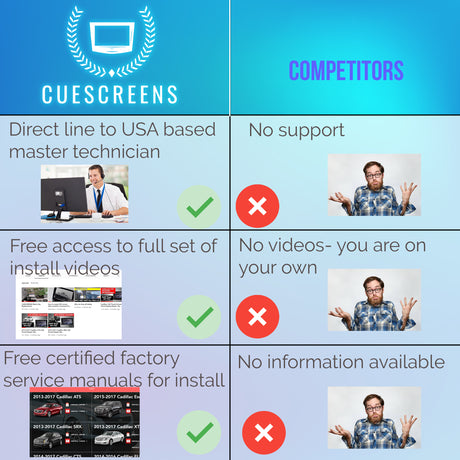
Installation is DIY-friendly with basic tools and Cuescreens' step-by-step video guides. If you prefer professional installation, Cuescreens works with a nationwide network of over 2,000 installers.
Get the Cuescreens GMC Sierra screen replacement here. Confirm your part number before ordering — see the Compatible Vehicles section below.
Cost Comparison: Dealer vs. Cuescreens
| Factor | Dealer Head Unit Replacement | Cuescreens Screen Assembly |
|---|---|---|
| Typical cost | $800–$1,500+ | $199 |
| What gets replaced | Entire radio unit | LCD and touch layer only |
| Programming required | Yes | No |
| Correct repair for screen failure | No — overkill in most cases | Yes |
| DIY-friendly | No | Yes |
| Chip quality | OEM standard | Upgraded QuantumCore |
| Adhesive type | Gel-based (failure-prone) | Gel-free construction |
| Warranty | Varies | 2-year standard, Lifetime available |
Compatible Vehicles
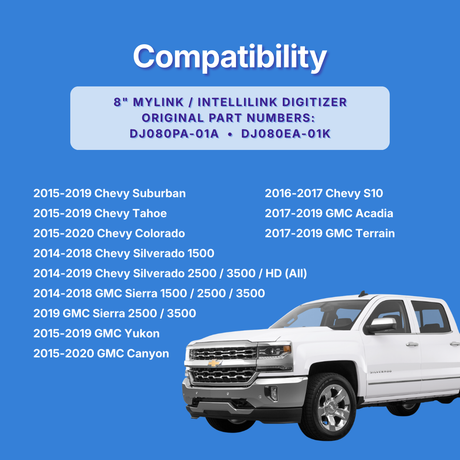
This guide and the linked replacement part apply to the earlier-generation GMC Sierra equipped with the 8-inch MyLink or IntelliLink display built on the DJ080PA-01A platform — the truck body style and infotainment system used before GM's redesign. GM introduced a different infotainment display on the redesigned Sierra, and that newer display is not compatible with this part.
The same DJ080PA-01A display platform has also been used, depending on model year and trim, across:
- Chevrolet Silverado
- Chevrolet Tahoe
- Chevrolet Suburban
- Chevrolet Colorado
- GMC Yukon / Yukon XL
- GMC Canyon
- GMC Acadia
Before ordering, confirm your fitment by part number, not by vehicle name or model year alone. Locate the part number printed on your existing screen or radio assembly and compare it against DJ080PA-01A or DJ080EA-01K. If your Sierra is a newer model year with a larger or different-looking infotainment display than the original 8-inch MyLink/IntelliLink screen, this part will not fit your truck.
Not sure which part you have, or driving a newer Sierra? Contact Cuescreens with your part number or a photo of your screen before ordering.
Frequently Asked Questions
Why is my GMC Sierra touchscreen not responding?
The three most common causes are a software crash, a failed touchscreen digitizer, or a power or fuse issue. If the screen shows a clear image but touch does not work, the display assembly has almost certainly failed. If the screen is completely black, start by checking fuses and the battery connection.
How do I reset a GMC Sierra MyLink or IntelliLink screen?
Press and hold the Home button and the Fast Forward button simultaneously for 10 seconds until the screen goes dark and reboots. If that does not work, disconnect the negative battery terminal for 10 minutes for a full hard reset.
What is part number DJ080PA-01A on the GMC Sierra?
DJ080PA-01A is the LCD panel identifier used in the 8-inch MyLink and IntelliLink infotainment system on the earlier-generation GMC Sierra, before GM's redesign of the truck. Confirm the part number printed on your existing screen before ordering, since GM used a different display on the redesigned truck.
Do I need to replace the whole head unit if my GMC Sierra screen stops responding?
Not if the screen is still displaying an image. A screen that shows a normal picture but does not respond to touch has a failed display assembly, not a failed head unit. The Cuescreens replacement restores full function without programming at a fraction of dealer cost.
How much does it cost to fix a GMC Sierra touchscreen?
GMC dealers typically quote $800 to $1,500 or more for a full radio replacement. The Cuescreens 8-inch MyLink LCD and touchscreen assembly is $199, requires no programming, and installs with basic tools in under an hour.
What vehicles use the same 8-inch screen as the GMC Sierra?
The same DJ080PA-01A display platform has been used across the GMC Sierra, Canyon, Yukon, and Acadia, as well as the Chevrolet Silverado, Colorado, Tahoe, and Suburban, in earlier-generation vehicles equipped with 8-inch MyLink or IntelliLink systems. Confirm your part number before ordering, since GM redesigned several of these vehicles at different points and the newer models use a different display.
About the Author: Daniel Gigante has over 18 years of experience in the automotive industry, with a focus on vehicle technology, infotainment systems, and real-world reliability. He writes about automotive design, touchscreen usability, and how modern technology impacts everyday driving.
![[Premium] Upgraded Gel-Free Cadillac CUE Replacement Touch Screen Display-Cuescreens](http://www.cuescreens.com/cdn/shop/files/7c1892_b5fcaf040dfe42abb289e47b1fa91ab9_mv2.png?v=1738265347&width=460)


![[Premium] Upgraded Gel-Free Cadillac CUE Replacement Touch Screen Display-Cuescreens. Supports Proximity Sensors.](http://www.cuescreens.com/cdn/shop/files/7c1892_7faa9297eab444d5a99838357b9c178c_mv2.png?v=1764720901&width=460)