Before you call a dealer, spend money on a diagnosis, or start pulling your dashboard apart, there is one step most car owners skip: checking the built-in diagnostic menu that is already sitting inside your infotainment system.
Most modern car infotainment systems have a hidden engineering or service menu. Technicians use it to run hardware tests, check software versions, and confirm whether components like the touchscreen, speakers, and display are working correctly. The touchscreen test inside this menu is one of the fastest ways to confirm dead spots, unresponsive zones, or ghost touch -- without any tools, without a dealer visit, and without guessing.
Here is what these menus are, how to access them on common platforms, and what the results actually tell you.
What Is an Engineering or Diagnostic Menu
Engineering menus are built into infotainment systems during development. They give technicians access to low-level hardware tests that are not available through the normal settings interface. Depending on the system, they may also be called service menus, dealer menus, or diagnostic modes.
What you typically find inside:
- A touchscreen draw test or touch input test that shows exactly where the screen is registering and where it is not
- A screen color or pattern test that checks the full LCD display area
- Speaker and tuner tests
- Software and firmware version information
- GPS antenna status
- Stored error codes or diagnostic trouble codes
For diagnosing a touchscreen problem, the touch test is what matters. It draws input in real time as you drag your finger across the screen. Dead zones show up immediately as areas where no input registers. Ghost touch shows up as input triggering on its own with no finger present.
What Dead Spots Actually Mean
A dead spot is a physical zone on the touchscreen that no longer responds to input. You can tap it, swipe across it, press it -- nothing happens. The rest of the screen may work fine. The LCD image is usually still perfect.
Dead spots are almost always a sign that the touchscreen digitizer has failed, either partially or completely. The digitizer is the touch-sensing layer at the front of the display. It sits in front of the LCD and is responsible for everything touch-related. It has nothing to do with the image quality or the radio functionality behind it.
When a digitizer starts to fail, you typically see a progression:
- Occasional missed taps in one area
- A consistent dead zone that grows over time
- Ghost touch or random inputs as the layer degrades
- Complete touch failure across the whole screen
The engineering menu touchscreen test lets you map exactly where the digitizer is failing before the problem gets worse -- and before you spend money on a dealer diagnosis that will almost certainly end with a full display replacement quote.
How to Access the Diagnostic Menu on Common Infotainment Systems
Button combinations vary by platform and model year. What follows are the most widely documented methods for common systems. Always do this with the vehicle stationary, ignition on, engine off.
Uconnect 8.4 (Chrysler, Dodge, Jeep, RAM)
On most Uconnect 8.4 systems, pressing and holding the temperature up and temperature down buttons simultaneously for about five seconds brings up the Engineering Menu. A separate touchscreen calibration mode can be accessed by holding the temperature up, temperature down, and Browse/Enter buttons at the same time for roughly five seconds. The calibration screen shows touch input in real time and is where you can identify dead zones.
Note: the exact button combination can vary between model years. Some owners report the driver-side climate controls versus the passenger-side controls producing different menus. If the first combination does not work, try the same hold with the opposite set of temperature buttons.
Mazda Connect / MZD Connect (Mazda 3, Mazda 6, CX-5, and others)
On 2016 and newer Mazda vehicles with the MZD Connect system, pressing and holding the Music, Favorites, and Mute buttons simultaneously brings up a white diagnostic screen with a numeric keypad. Entering different test codes runs different hardware tests. The screen and touch tests are accessible from this interface.
On older Mazda systems with the NB1 navigation unit (TomTom-based), the menu is accessed by pressing and holding the Power and Seek forward buttons at the same time. Inside, test code 01 runs a screen display test and test code 83 runs touchscreen calibration, which shows live touch input.
Cadillac CUE
Cadillac CUE diagnostic access varies across generations and trim levels. Some owners have accessed a hidden development or diagnostic menu accidentally by pressing the volume down and Home buttons at the same time. Others have found menus accessible via the Home and fast-forward buttons held for around ten seconds. CUE's service diagnostics are more locked-down than most platforms, and the most reliable way to run a touchscreen test on CUE systems is through Cadillac's factory scan tool. If your CUE screen has dead spots, the behavior itself -- consistent unresponsive zones with a working image -- is typically enough to confirm a digitizer failure without needing a menu confirmation.
General Tip for Any System
If you cannot find a confirmed button combination for your specific infotainment system, searching your vehicle's name plus "engineering menu," "diagnostic mode," or "service menu" in a make-specific owner forum will usually surface documented methods. Most modern infotainment platforms have been reverse-engineered by enthusiast communities, and the methods are well-documented. The key is to use verified sources specific to your exact system, not generic instructions that may not apply to your hardware version.
What to Do If the Test Confirms a Dead Spot
If the touchscreen draw test shows a zone where input does not register, the digitizer has failed. That is a hardware problem. A factory reset will not fix it. A software update will not fix it. A dealer visit will result in a quote for a full display assembly replacement that includes the LCD, housing, and often the entire head unit -- the vast majority of which still works fine.
In most cases, the part that needs replacing is the digitizer alone. It is the touch layer at the front of the display, and on many vehicles it can be replaced separately without touching the LCD or the radio.
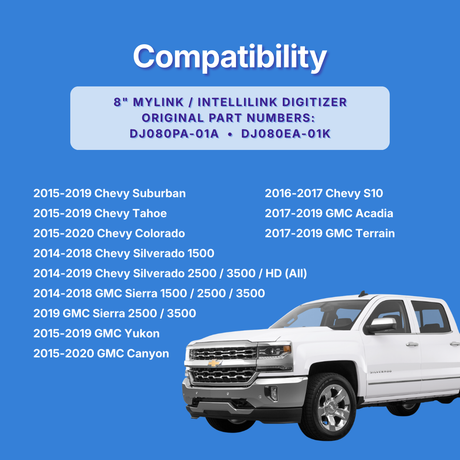
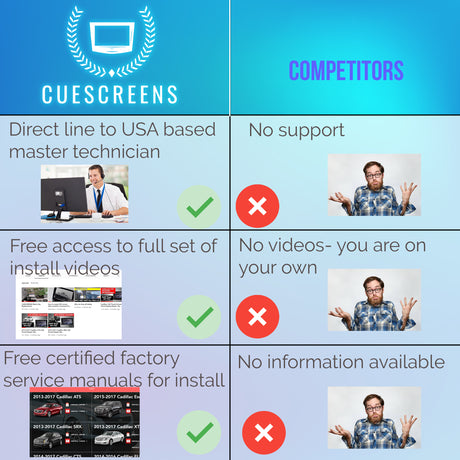
Cuescreens sells direct-fit digitizer replacements for a wide range of vehicles including Cadillac CUE, Mazda, Dodge, Jeep, Chrysler, RAM Uconnect, Chevrolet MyLink, GMC, Hyundai, Kia, Subaru, Volkswagen MIB2, Ford Sync, and Buick. If your screen still shows a clear image and the only problem is unresponsive touch, a digitizer replacement is almost always the correct repair -- and it costs a fraction of what a dealer charges for a full assembly.
Browse replacement digitizers by vehicle at Cuescreens
Frequently Asked Questions
What is a car infotainment engineering menu?
An engineering menu -- also called a diagnostic or service menu -- is a hidden interface built into most modern infotainment systems. It is used by technicians to run hardware tests and verify that components like the touchscreen, speakers, and display are functioning. Most owners can access it using specific button combinations with no special tools required.
Will using the engineering menu damage my infotainment system?
Running read-only tests like the touchscreen draw test or screen color test is low risk. The danger comes from changing settings inside the menu, not from accessing it. If you are using it to diagnose a touchscreen problem, stick to test modes only and do not adjust configuration values.
What does a touchscreen dead spot mean?
A dead spot is an area on the touchscreen that does not register touch input. It is almost always a sign of digitizer failure, not an LCD or software problem. The digitizer is the touch layer at the front of the display, and it can fail partially while the image remains completely normal.
Can a software update fix touchscreen dead spots?
Rarely. Intermittent behavior caused by a software bug can sometimes be resolved with a firmware update or factory reset. Consistent physical dead zones that fail the same way every time are almost always hardware failures. A software update will not repair a failed digitizer.
What is the difference between a dead spot and ghost touch?
A dead spot is an area that will not respond to touch. Ghost touch is when the screen registers inputs on its own with no finger present. Both are symptoms of digitizer failure and often occur in the same screen as the digitizer degrades over time.
Do I need a dealer visit to diagnose a touchscreen problem?
Not necessarily. The diagnostic menus built into most infotainment systems can confirm a digitizer failure at home. If the draw test shows clearly unresponsive zones, you have strong evidence of the problem. A dealer visit typically results in a full display replacement quote rather than a targeted digitizer repair, which is often many times more expensive than it needs to be.
![[Premium] Upgraded Gel-Free Cadillac CUE Replacement Touch Screen Display-Cuescreens](http://www.cuescreens.com/cdn/shop/files/7c1892_b5fcaf040dfe42abb289e47b1fa91ab9_mv2.png?v=1738265347&width=460)


![[Premium] Upgraded Gel-Free Cadillac CUE Replacement Touch Screen Display-Cuescreens. Supports Proximity Sensors.](http://www.cuescreens.com/cdn/shop/files/7c1892_7faa9297eab444d5a99838357b9c178c_mv2.png?v=1764720901&width=460)