Short answer: Most CarPlay and Android Auto disconnects are caused by the cable, the USB port, or a setting on your phone, not the car's touchscreen. Start with those. If your phone still shows it is connected but the screen keeps jumping out of CarPlay or Android Auto, pressing things on its own, or ignoring your taps, the touchscreen digitizer is the more likely culprit.
Losing navigation or music in the middle of a drive is frustrating, and it is natural to assume the car is the problem. In practice, the cheapest parts of the chain fail first. This guide walks you through each link, in order, so you do not spend money on a part you do not need.
How CarPlay and Android Auto Actually Connect
Understanding the chain makes diagnosis much faster. Every CarPlay or Android Auto session depends on four things working together:
- Your phone runs the apps and sends the picture to the car.
- The connection carries the data, either through a USB cable or wirelessly over Bluetooth and Wi-Fi.
- The head unit (the radio module behind the dash) receives the data and runs the display.
- The touchscreen shows the picture (the LCD) and reads your taps (the digitizer).
A true disconnect happens when the data link between phone and head unit breaks. A failing touchscreen does not usually break that link. Instead, it causes problems that look like a disconnect. Knowing the difference is the key to finding the real cause.
Step 1: Swap the Cable First
For wired connections, the cable is the number one cause of drops. Cables wear out internally long before they look damaged, especially near the connectors where they bend.
- Use a cable made or certified for your phone. Cheap cables may charge fine but carry data poorly.
- Make sure it is a data cable, not a charge-only cable.
- Shorter cables tend to be more reliable than long ones.
- If the connection drops when you hit a bump or move the phone, the cable or port is almost certainly the problem.
Step 2: Check Both USB Ports
Lint packed into your phone's charging port is one of the most overlooked causes of CarPlay and Android Auto drops. It keeps the plug from seating fully, so the connection cuts in and out.
- Shine a light into the phone's port. Gently remove debris with a wooden or plastic toothpick, never metal.
- Check the car's USB port for looseness or damage.
- Many vehicles have more than one USB port, and often only one supports CarPlay or Android Auto. Check your owner's manual and try the correct port.
Step 3: Update and Check Your Phone Settings
Phone software updates frequently change how projection works, and settings designed to save battery can cut the connection.
On iPhone (CarPlay):
- Install the latest iOS update.
- Go to Settings > General > CarPlay, select your car, and choose Forget This Car. Then reconnect.
- If you use a passcode, check that USB accessories are allowed to connect while the phone is locked (Settings > Face ID & Passcode or Touch ID & Passcode, then Accessories).
- Make sure CarPlay is not restricted under Screen Time settings.
On Android (Android Auto):
- Update both your phone's software and the Android Auto app.
- Remove battery optimization or background restrictions for Android Auto. The exact menu varies by phone maker, but it is usually under Settings > Apps > Android Auto > Battery.
- In the Android Auto settings, remove the car from your connected cars list and set it up again.
- Clearing the Android Auto app's cache can resolve repeated crashes and drops.
Step 4: Wireless? Rule Out Interference
Wireless CarPlay and wireless Android Auto use Bluetooth and Wi-Fi at the same time, which adds more ways for the connection to fail.
- Turn off your phone's personal hotspot and any VPN apps while driving.
- Disconnect other Bluetooth devices, such as smartwatches or earbuds, and see if the drops stop.
- Watch for phone overheating. Running navigation while charging on a sunny dash can cause the phone to throttle and drop the connection.
- Plug in with a good cable for a few drives. If wired works perfectly, the issue is wireless-specific, not the screen.
Step 5: Test With a Second Phone
This is the single most useful test, and it costs nothing. Borrow a family member's phone and connect it to your car using a known good cable.
- Second phone stays connected: the problem is your phone, its settings, or its port.
- Second phone also drops: the problem is in the car. That points to the USB port, its wiring, the head unit software, or the screen.
If the car is the problem, check whether your vehicle manufacturer has released an infotainment software update. Dealers can often install these, and some vehicles accept updates over the air or through USB.
Step 6: Is It Actually the Touchscreen?
Once the cable, ports, and phone check out, look closely at what the screen is doing. A failing digitizer (the touch layer on top of the display) causes a specific set of symptoms that are often mistaken for a connection problem.
Signs the touchscreen is the problem
- CarPlay or Android Auto exits to the factory menu by itself. A phantom touch on the home or menu button kicks you out, even though the phone still shows it is connected.
- Apps switch, calls end, or music skips without you touching anything. This is classic ghost touch. Learn more in our guide to how electrical interference mimics fingers.
- The picture looks fine, but taps do not register or land in the wrong spot. The phone connection is working. The touch layer is not.
- Certain areas of the screen do nothing. Dead zones often show up first along the edges, which is exactly where CarPlay and Android Auto place their dock and home buttons. Our DIY dead spot test can confirm this.
- Bubbling, hazy patches, or a peeling look under the glass. Delamination often causes ghost touches as it spreads.
A simple way to confirm it
Control CarPlay or Android Auto using only your steering wheel buttons and voice commands for a few drives. If everything stays connected and works normally when you are not touching the screen, but problems return when you do (or when the screen acts on its own), the digitizer is the likely cause.
Signs it is the head unit, not the screen
- The entire system reboots, showing the startup logo again.
- The radio, climate display, and backup camera all cut out together.
- The phone shows a true disconnection at the same moment.
These symptoms point deeper than the touch layer. For help telling the two apart, see how to tell if your car needs a new screen vs. a new head unit and how to tell a software glitch from a hardware failure.
Symptom Chart: What Your Symptoms Point To
| Symptom | Most likely cause |
|---|---|
| Drops when the phone or cable moves | Cable or USB port |
| Drops only on wireless, fine when wired | Bluetooth or Wi-Fi interference, phone overheating |
| Started right after a phone update | Phone software or settings |
| Only your phone drops, other phones are fine | Your phone, its port, or its settings |
| Every phone drops in this car | Car USB port, wiring, or head unit software |
| Whole system reboots to the startup logo | Head unit or power issue |
| Phone stays connected, but the screen exits CarPlay or presses things on its own | Touchscreen digitizer (ghost touch) |
| Picture is fine, but taps do not work in some or all areas | Touchscreen digitizer (dead zones) |
What to Do If the Touchscreen Is the Cause
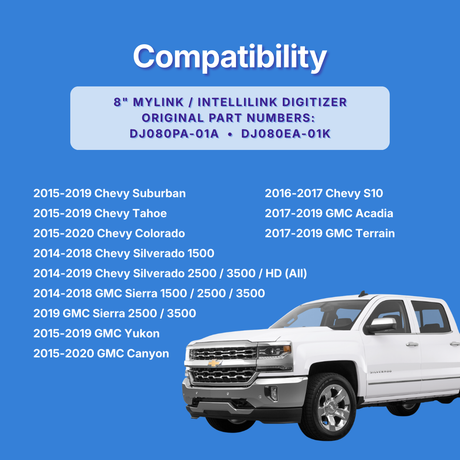
If your testing points to the digitizer, you usually do not need a new head unit. A direct-fit replacement touchscreen restores normal touch response so CarPlay and Android Auto work the way they should. Keep in mind that screen replacement is a real repair. On many vehicles it means removing trim and taking the radio module out of the dash, so plan your time and tools accordingly.
Before you order, confirm the exact screen your vehicle uses. Our guide on how to confirm your car's exact touchscreen version walks you through it. You can also browse direct-fit replacement screens at Cuescreens.
Frequently Asked Questions
Why does my CarPlay or Android Auto keep disconnecting?
The most common causes are a worn or charge-only USB cable, a dirty or loose USB port, outdated phone software, and battery or background restrictions on the phone. Wireless connections can also drop from Bluetooth or Wi-Fi interference and phone overheating. A failing touchscreen is less common, but ghost touches can make CarPlay or Android Auto appear to disconnect by pressing buttons on their own.
Can a bad touchscreen cause CarPlay to disconnect?
A failing touchscreen usually does not break the actual data connection between your phone and car. What it can do is register phantom touches that exit CarPlay or Android Auto, open other menus, or end calls, which looks like a disconnect. If your phone still shows it is connected while the screen jumps around, the digitizer is a likely suspect.
How do I know if the problem is my phone or my car?
Connect a different phone to the same car with a known good cable. If the second phone stays connected, the problem is your phone or its settings. If both phones drop, the problem is in the car, such as the USB port, wiring, head unit software, or the screen.
Why does wireless CarPlay or Android Auto drop more than wired?
Wireless projection relies on both Bluetooth and Wi-Fi at the same time, so it has more points of failure. Interference from other devices, phone hotspots, VPN apps, and phone overheating while charging and navigating can all cause drops. Testing with a cable is one of the fastest ways to narrow down a wireless problem.
Will replacing the touchscreen fix CarPlay disconnects?
Only if the touchscreen is the cause. A replacement screen fixes ghost touches, dead zones, and unresponsive areas that interfere with CarPlay and Android Auto. It will not fix a bad cable, a damaged USB port, phone software problems, or a head unit that is rebooting on its own.
What does it mean if CarPlay works but I cannot tap anything?
If CarPlay or Android Auto displays normally but taps do not register, or register in the wrong place, the phone connection is fine and the touch layer (digitizer) is the likely problem. Try controlling CarPlay with steering wheel buttons or voice commands. If those work and the screen does not, the screen needs attention.
The Bottom Line
When CarPlay or Android Auto keeps dropping, work from the cheapest fix to the most expensive: cable, ports, phone settings, a second-phone test, and only then the screen. If your phone stays connected but the screen keeps exiting, ghost touching, or ignoring taps, the digitizer is the problem, and a direct-fit replacement screen is usually the fix without replacing the whole radio.